How to Add AI Explainer Videos to Your E-Learning Course
By Ajith Pinninti, founder and CEO of DistilBook · Published October 5, 2026
Ajith builds AI tools for explainer and motion-graphics video: DistilBook, and Framenet AI before it.
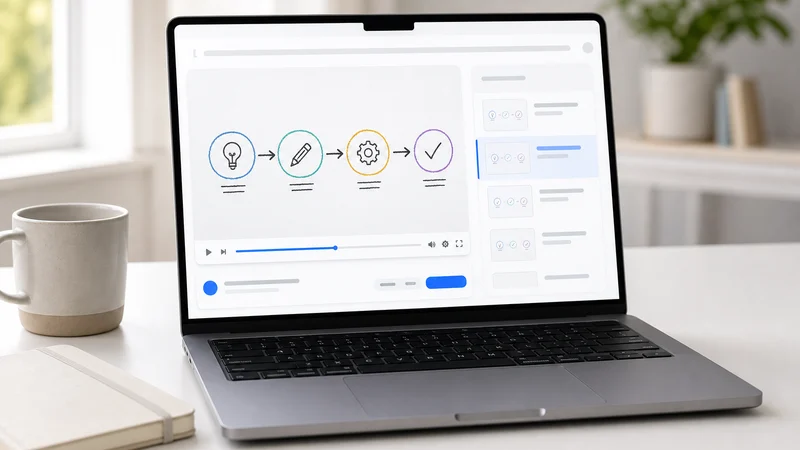
DistilBook gives you an MP4: a narrated explainer with an original visual for each idea, in 16:9 or 9:16, up to 1440p. Every authoring tool and LMS accepts an MP4, so getting it into your course takes a few clicks. This guide shows where those clicks are in the tools e-learning teams use most, and when to publish the course as SCORM instead of uploading the video on its own.
How do you add a DistilBook video to an Articulate Rise 360 course?
Download the MP4 from DistilBook, open your Rise 360 course, add a Multimedia block and choose Video, then upload the MP4. The video is stored inside the course, so it publishes with your SCORM, xAPI or web export like any other block.
Place the video directly after the text it explains, and keep each video to one idea or procedure. Short videos are easier to update when the source document changes.
How do you add a DistilBook video to Articulate Storyline 360?
On the slide, go to Insert, Video, Video from File and choose the MP4. If completion matters, add a trigger that moves to the next slide or marks the slide complete when the video's media completes, then publish to your LMS as SCORM or xAPI.
Storyline can also show the video in a lightbox or on its own slide with navigation locked until it ends, which is useful for compliance modules.
How do you add a DistilBook video to iSpring Suite?
iSpring Suite works inside PowerPoint. Insert the MP4 on a slide with PowerPoint's Insert, Video, then publish the presentation with iSpring to your LMS as SCORM. The video plays inside the published course.
If your source is already a PowerPoint deck, you can also export it as a PDF, turn it into a narrated DistilBook video, and place that video back into the iSpring course as the explainer for the module.
How do you add a DistilBook video to Adobe Captivate?
Add a video to a slide and select the MP4 from your computer, then publish the project to your LMS as SCORM or xAPI. Captivate treats it like any other video file.
Keep the video's aspect ratio matched to the project: 16:9 for a standard course, 9:16 for a mobile-first microlearning project.
How do you add a DistilBook video to Moodle or another LMS?
In Moodle, choose Add an activity or resource, then File, and upload the MP4; or use the media button in any Moodle text editor to embed it in a page or lesson. TalentLMS, Docebo, LearnWorlds, Teachable and Thinkific all accept an MP4 as a video lesson or unit.
Uploading the MP4 directly is the quickest route when you do not need completion tracking from inside the video itself.
Should you use SCORM or a plain MP4?
Use a plain MP4 when the LMS only needs to show the video. Use SCORM or xAPI when you need completion or a score recorded inside the package. DistilBook exports MP4, so for SCORM, place the video in your authoring tool, such as Rise, Storyline, iSpring or Captivate, and publish the package from there.
Most e-learning teams already publish SCORM from an authoring tool, so the video becomes one more media element in a course they control.
- 16:9 for desktop courses and slides; 9:16 for mobile microlearning and short-form.
- 1080p suits most LMS players; 1440p for large screens and projectors.
- Make one video per language from the same source if your course runs in several languages.
Keep reading
Best AI Video Tools for E-Learning in 2026
The best AI video tools for e-learning in 2026, compared on what the learner sees, languages, LMS and SCORM, and price. Prices checked on each vendor's own pricing page, 5 October 2026.
Best AI Tools to Turn Documents into Training Videos in 2026
Eight AI tools that turn a PDF, policy or manual into a training video, compared on how they handle documents, narration, branding, price and export. Tested September 2026.
How to Make a Training Video with AI
How to make a training video with AI in 2026: the options including PowerPoint, Canva and Teams, what each is good for, the exact steps, and what it costs.